
This guide explains how to disable Windows Firewall using the Local Group Policy Editor.
Important: Administrator privileges are required.
Warning: Disabling Windows Firewall reduces the security of your server and may expose network services directly to the Internet. We recommend disabling it only when necessary for troubleshooting or when another firewall is already protecting the server.
Step 1. Open Local Group Policy Editor
Press:
Win + R
In the Run window, enter:
gpedit.msc
Press Enter.
The Local Group Policy Editor will open.
Step 2. Disable Windows Firewall for the Domain Profile
In the left panel, navigate to:
Computer Configuration → Administrative Templates → Network → Network Connections → Windows Defender Firewall → Domain Profile
In the right panel, locate:
Windows Defender Firewall: Protect all network connections
Double-click the setting.
Select:
Disabled
Click Apply, then click OK.
Step 3. Disable Windows Firewall for the Standard Profile
In the left panel, navigate to:
Computer Configuration → Administrative Templates → Network → Network Connections → Windows Defender Firewall → Standard Profile
Find the following setting again:
Windows Defender Firewall: Protect all network connections
Double-click it.
Select:
Disabled
Click Apply, then click OK.
Step 4. Apply the Group Policy Changes
Open Command Prompt or PowerShell as Administrator.
Run:
gpupdate /force
Wait until the policy update is complete.
If necessary, restart the server for the changes to take effect.
Example
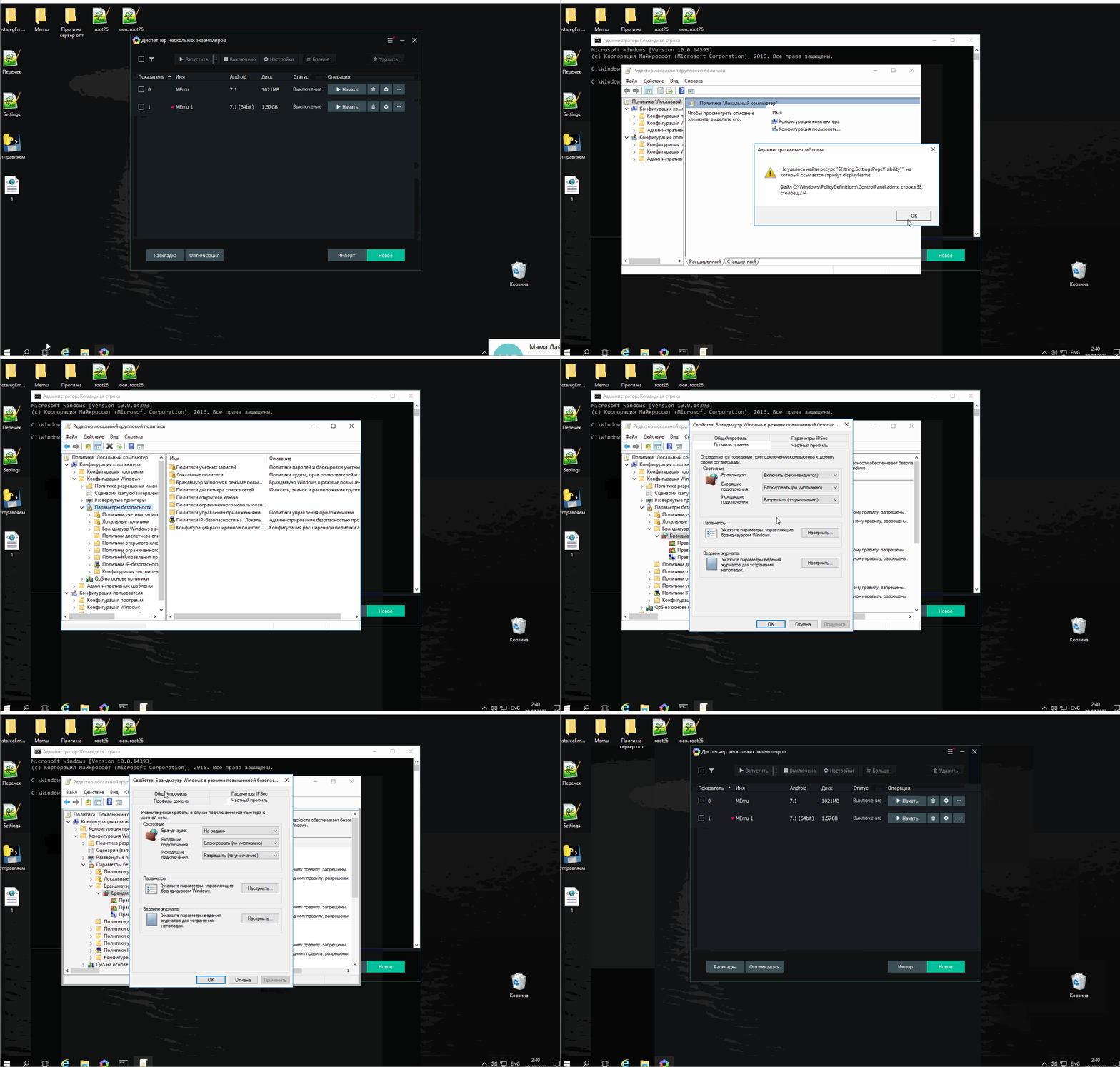
The animation below shows the process in the Windows interface.
If gpedit.msc Does Not Open
If gpedit.msc is unavailable, the Local Group Policy Editor may not be included in your Windows edition.
In this case, use another supported Windows Firewall configuration method.
Security recommendation: If you disable Windows Firewall temporarily for troubleshooting, enable it again after the issue has been resolved.