
VNC access is used for emergency access to the server when SSH or RDP access is unavailable.
After VNC is enabled, the server operates in recovery mode. Server resources are limited, and all external connections except VNC are blocked.
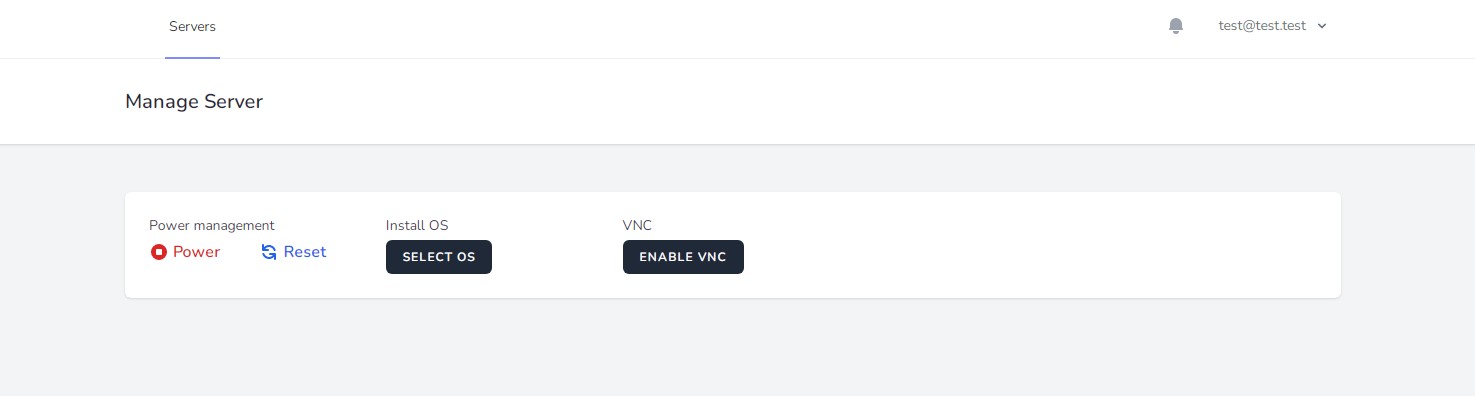
Click Enable VNC and wait approximately 2–5 minutes until the Connect VNC button appears.
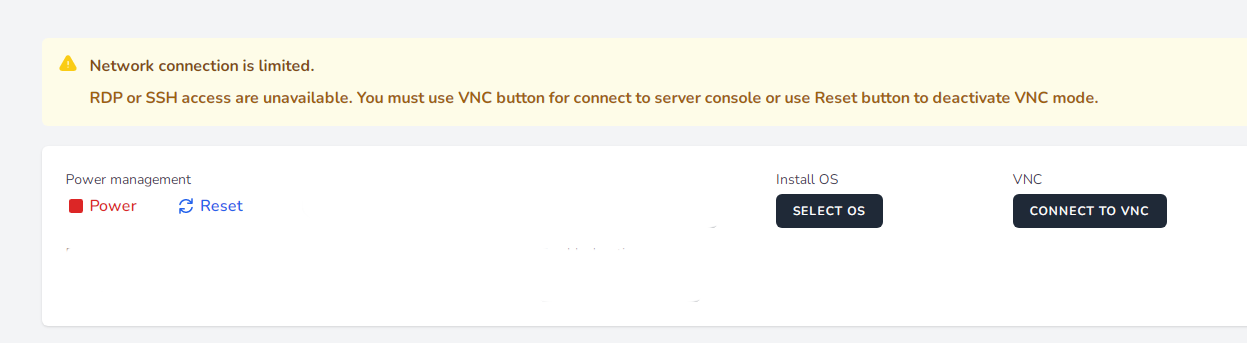
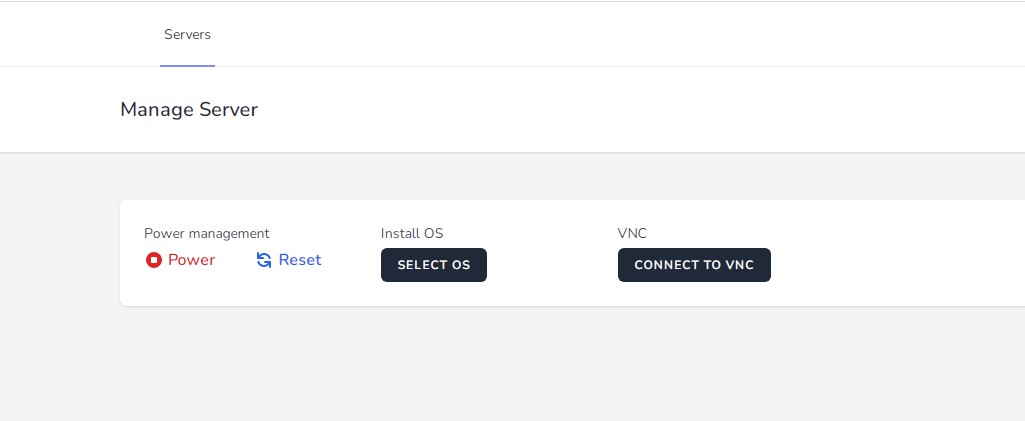
Click Connect VNC.
The VNC console will then open in the same window.

On the left side, you will see the VNC control menu.
To display the password entry screen, click A in the menu and then click the corresponding button at the bottom:
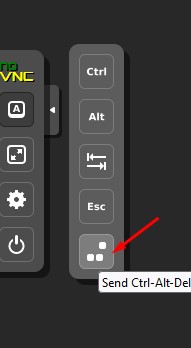
Enter your operating system password (Copy and paste works). Use the same password that you normally use to log in to the server.
After you have finished working in recovery mode, the server must be shut down before returning it to normal operating mode.
For Windows, run the following command:
Start → Run → shutdown -s -t 1
For Linux, run:
shutdown -h now