The easiest way to transfer files between your local Windows PC and your remote server is to enable drive redirection in the Remote Desktop Connection (RDP) settings.
Step 1. Open Remote Desktop Connection
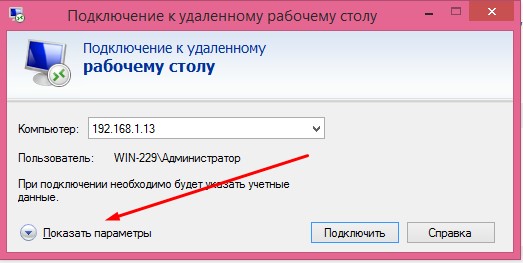
Open Remote Desktop Connection and click Show Options.
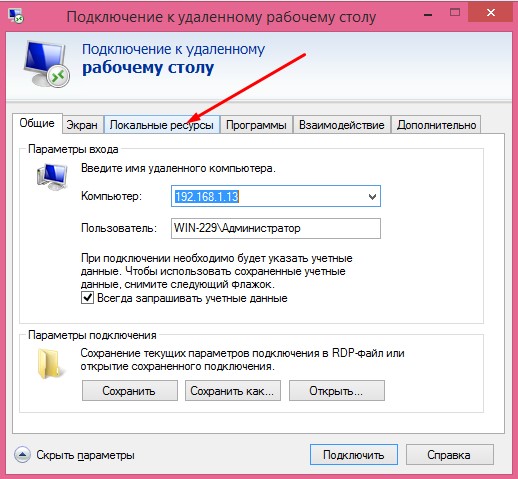
Step 2. Open Local Resources
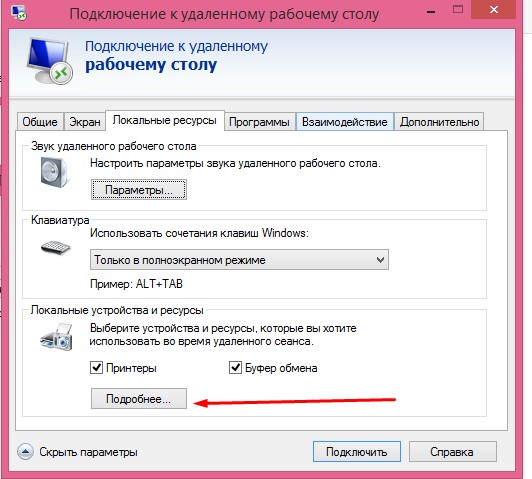
Go to the Local Resources tab and click More….
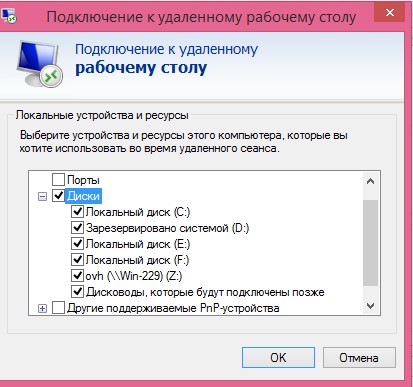
Step 3. Select the local drives
In the new window, select the drives from your local computer that you want to make available on the remote server.
These drives will appear inside the server as redirected drives, allowing you to copy files between your local PC and the server.
Step 4. Connect to the server
Click OK, then click Connect.
Once the RDP session starts, the selected local drives will be available on the remote server.
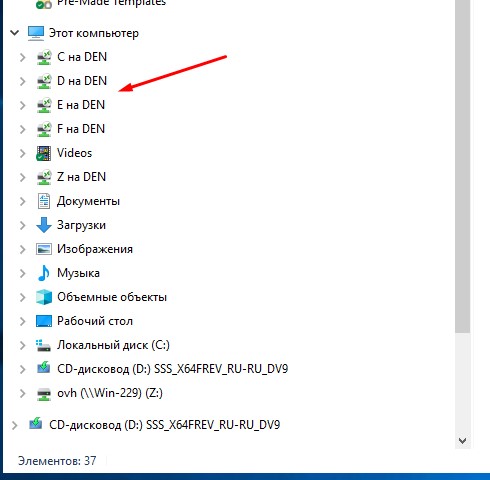
You can now copy files between your local computer and the remote server using File Explorer.