
You can reinstall the operating system on your VPS directly from the PowerVPS control panel.
Important: Reinstalling the operating system will permanently delete all data stored on the VPS.
Step 1. Select your VPS
Open the VPS control panel at https://vm.powervps.xyz/ and select the server you want to reinstall.
Click the … menu next to the server.
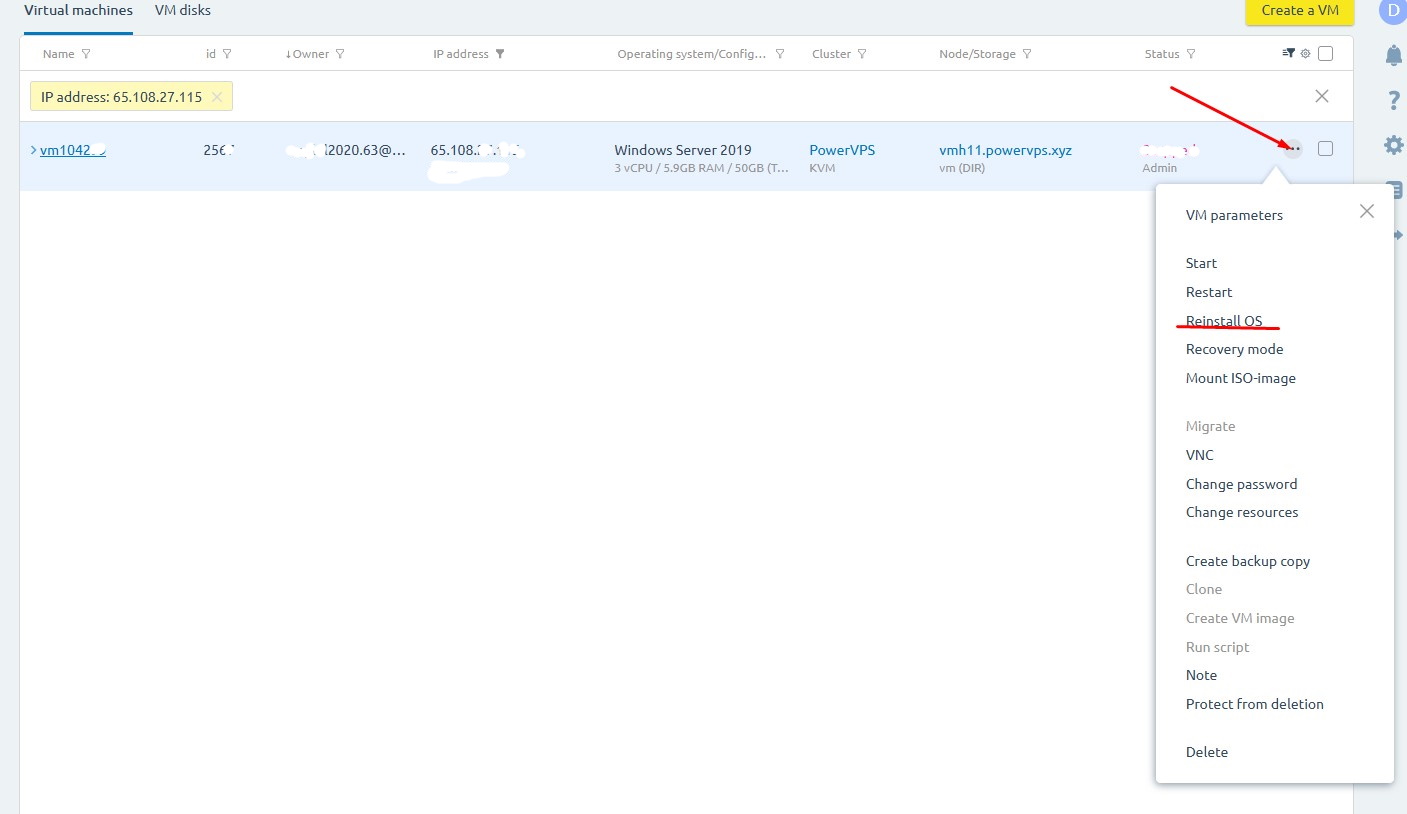
Step 2. Start the OS reinstallation
Select Reinstall OS.
Then choose the operating system you want to install.
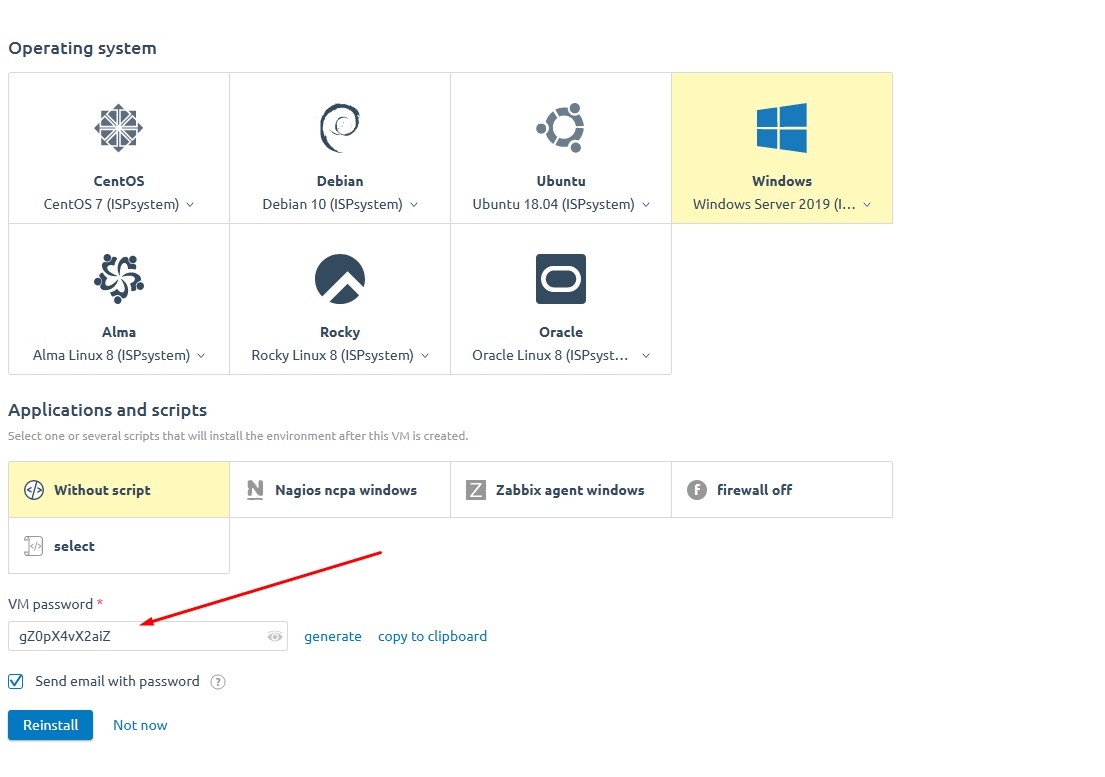
Step 3. Save the new password
Make sure to copy and save the new operating system password.
This will be your new server password. It is not sent to your email, so save it in a secure place before continuing.
Step 4. Wait for the installation to complete
The operating system reinstallation usually takes approximately 5–10 minutes.
During the installation, all existing data on the VPS will be deleted.
Once the process is complete, you can connect to the VPS using the new password.