To manage your server — including rebooting it and reinstalling the operating system — you can use our control panel at https://ds.powervps.xyz/
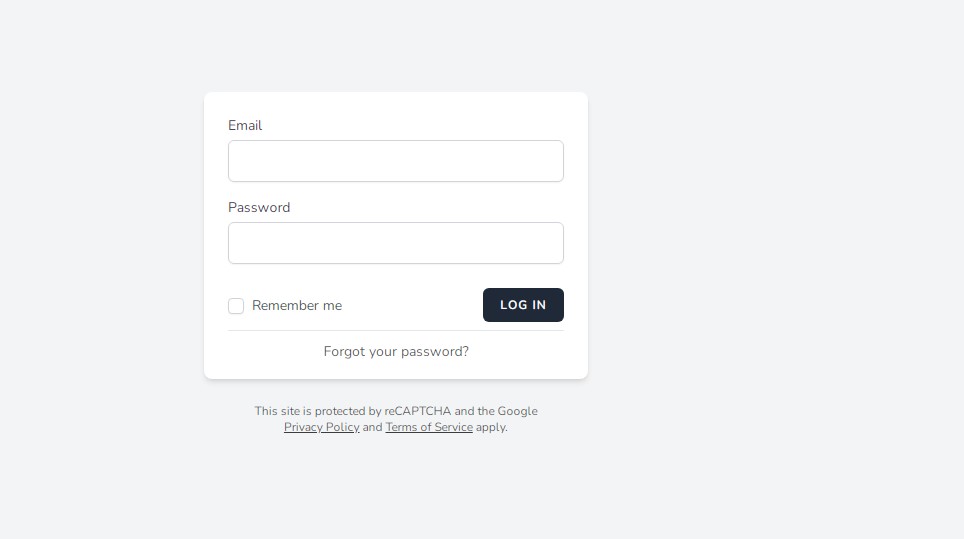
Your login details are provided when the server is delivered to you.
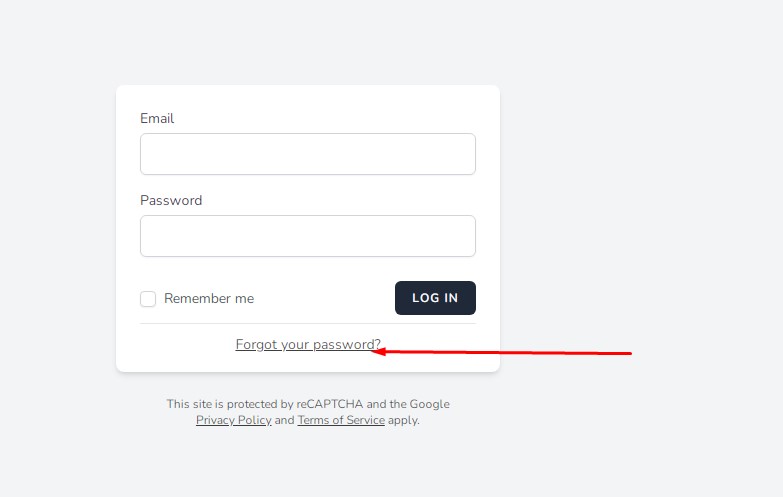
Your login is your email address. If you forget your password, you can reset it by clicking the option shown below. A new password will then be sent to your email address.
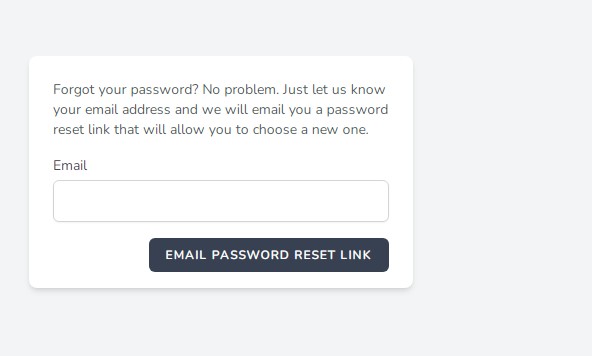
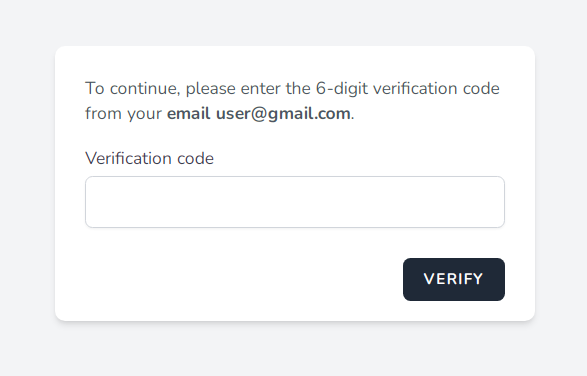
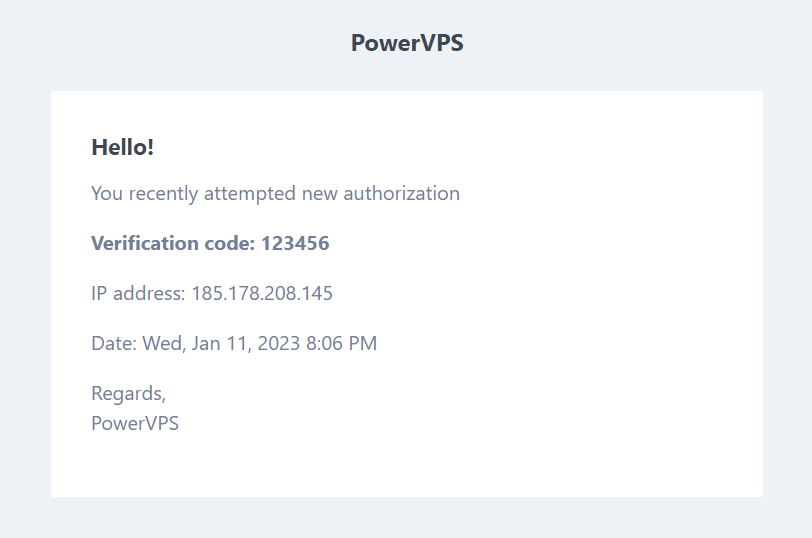
When you log in, an authorization code will be sent to your email address.
Let’s take a closer look at the available features in the control panel.
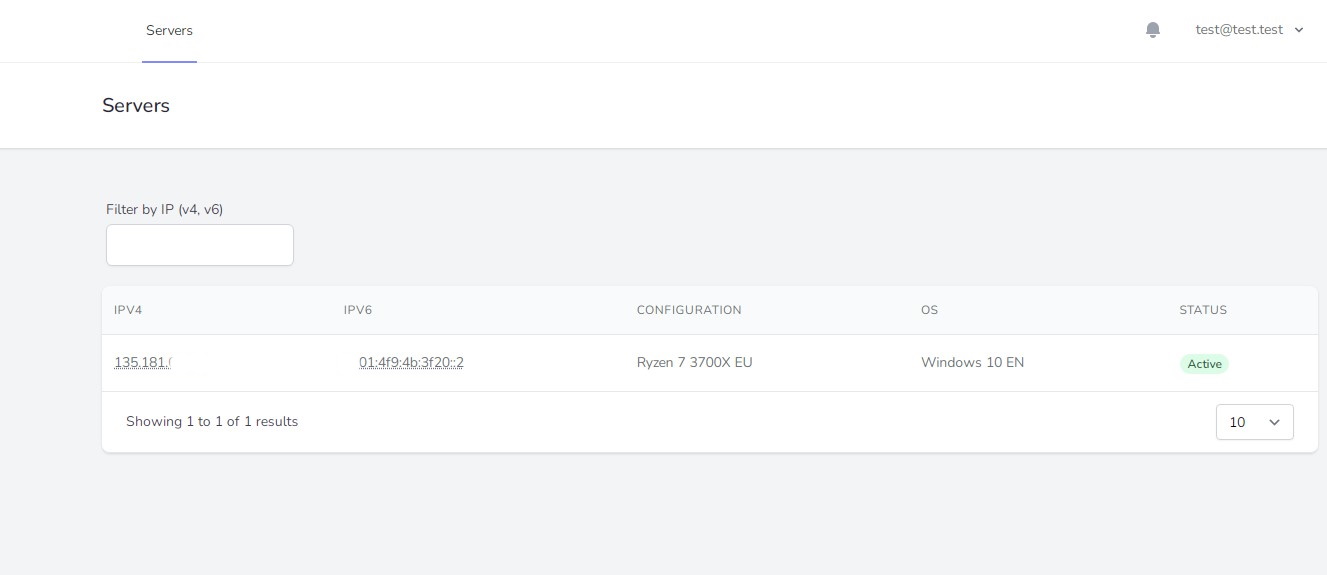
Click the area between IPv4 and IPv6, or click Windows 10 EN (or the operating system currently installed on your server).
You will then see the following menu:
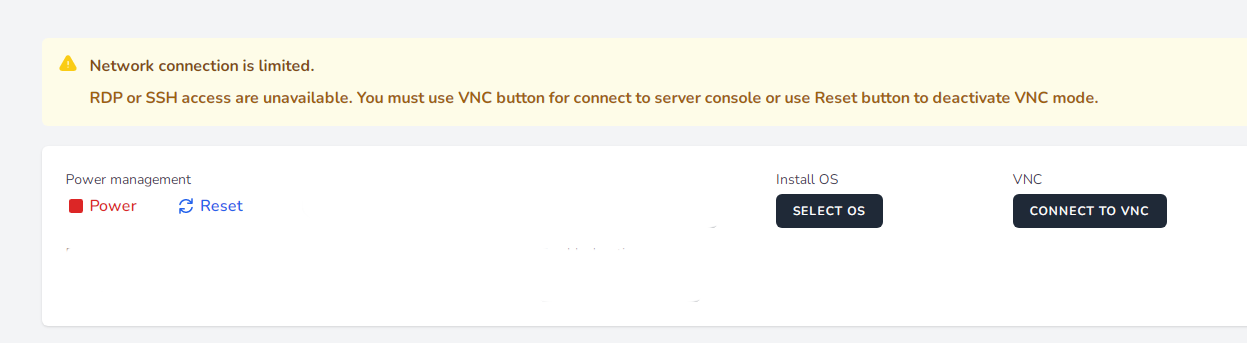
Here you can:
- Power — power the server on or off.
- Reset — reboot the server.
- Install OS — reinstall the operating system.
- VNC — boot the server into a recovery environment with limited functionality for troubleshooting server-related issues.
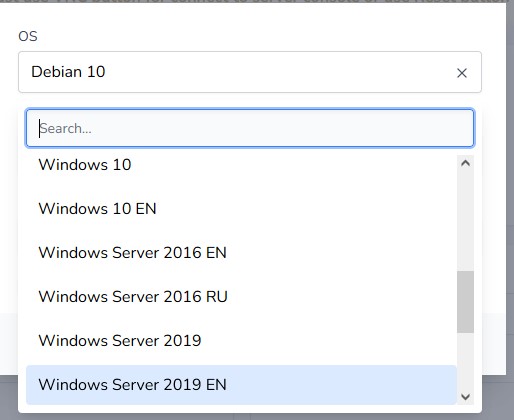
Click Select OS to reinstall the operating system and select the OS you need — read more.
When using VNC mode, RDP and SSH connections are unavailable. You can find more information here.